
Microsoft SharePoint
Microsoft CorporationProductivity
4.01.06K Reviews
- Version
- 4.00.00
- Installs
- 10.00M
- Age Rating
- Everyone
Screenshots
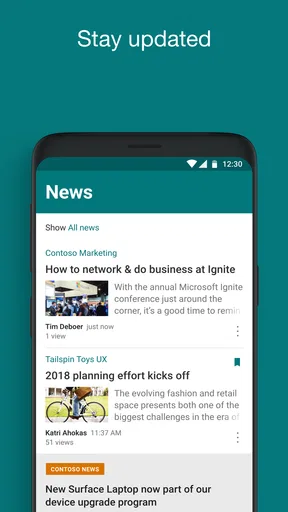
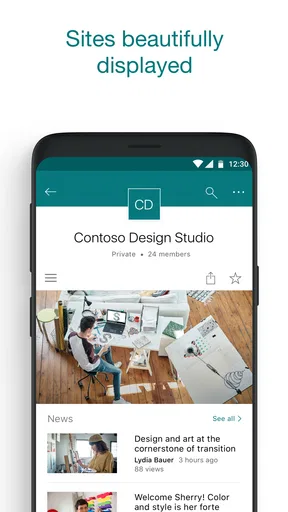
Our Review of Microsoft SharePoint
 Analysis by Appyee
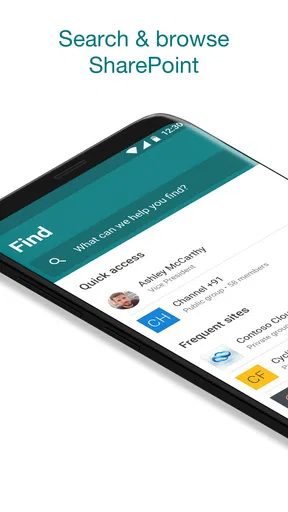
Work information has a habit of scattering itself across too many places. A news update sits in one channel, a document is buried in a team site, a colleague’s contact details are somewhere else, and the useful page you need is difficult to find when you are away from your desk. Microsoft SharePoint is designed to reduce that repeated searching by putting organization content, files, people and relevant updates into one mobile workspace.
I reviewed it as a productivity app rather than as a replacement for every workplace tool. Its real value appears when your organization already uses SharePoint and has built useful sites around it. In that situation, the app can turn a slow “where was that?” moment into a quicker search-and-open routine. When there is little SharePoint content behind your account, however, the experience can feel much less useful than the store summary suggests.
Developed by Microsoft Corporation, this free app is available for Everyone and belongs to the productivity category. It has a 4.0 average from around 34 thousand ratings, with over 10 million installs, which gives it a substantial mobile audience. The release history began on October 23, 2016, and the current version is 4.00.00 for devices running OS 8.1 or later.
Finding the information that usually takes too long
I look at SharePoint as a way to shorten the search for workplace information, not as a guarantee that every result will be current or relevant. This section considers the trust context: the app’s usefulness depends on an organization’s own content and how its people maintain it. That distinction matters before deciding what to rely on when a quick answer is needed.
Why the problem is more about organization than storage
SharePoint’s strongest idea is not simply storing a file on a phone. The difficult part of workplace information is usually context. A document may belong to a department site, a project, an internal news page or a team collection. If I open the app looking for a procedure, announcement or person, I need the surrounding organization to help me recognize the right result.
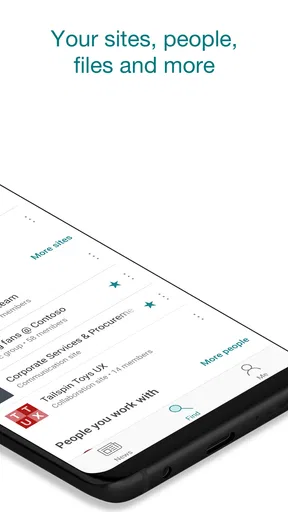
That is where the mobile experience makes sense. Instead of treating every item as an isolated download, it gives me a way to browse the SharePoint environment I already use. I can move between sites, look for files and people, and check news that has been made relevant to my organization. The benefit is modest for a personal user, but meaningful for someone whose work is already structured around Microsoft’s collaboration platform.
I also like that the app targets several kinds of information at once. A typical productivity tool may focus on documents, while a general file manager focuses on folders. SharePoint sits closer to an internal information portal. That makes it useful for checking an announcement before a meeting, locating a team resource or finding the right colleague without switching through several unrelated apps.
The first setup depends on your workplace
The first useful step is signing in with the account connected to your organization’s SharePoint environment. From there, the quality of the home experience depends heavily on what your workplace has arranged. If sites are named clearly and content is maintained, the app quickly becomes a practical front door. If the sites are old, duplicated or poorly organized, the phone cannot fix that underlying problem.
I recommend spending a few minutes identifying the sites you actually use rather than trying to explore everything. A department site, a project area and an internal news source are often more valuable than a long list of rarely visited locations. This small bit of housekeeping makes later browsing faster and reduces the temptation to treat the app like an enormous filing cabinet.
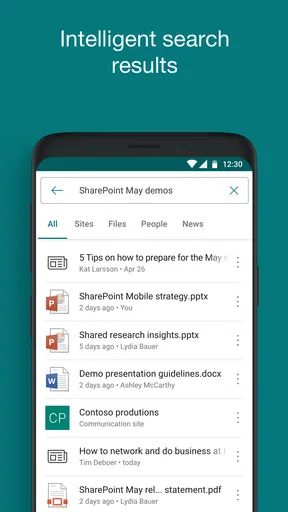
Another useful habit is to search by the wording people in your organization really use. A formal document title may be different from the phrase colleagues use in conversation. Trying both can make the difference between finding a policy quickly and assuming it is missing. This is one of the less obvious strengths of a mobile SharePoint client: it rewards familiarity with your organization’s language.
What the app feels like in everyday use
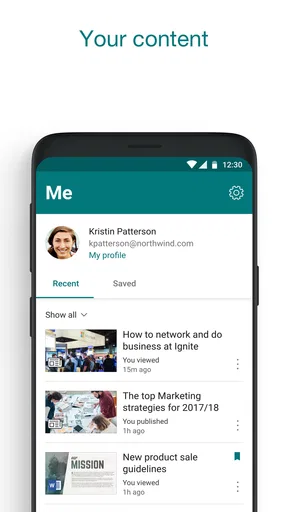
Once the account and sites are in place, the app is fairly straightforward. I can use it to reach organizational news, browse relevant sites, look for files and locate people. The experience is most convincing when I already know the general area where something belongs but do not remember the exact page or folder.
For example, imagine I am leaving for a client visit and realize I need the latest internal checklist. On a laptop, I might open a browser, navigate through a portal and search several locations. On a phone, SharePoint gives me a more direct route into the same workplace structure. I can search for the checklist, inspect the surrounding site context and open the item without rebuilding the entire desktop workflow.
That scenario also shows the app’s boundary. It helps me reach information; it does not automatically make unclear information clear. If several copies of a checklist exist, I still need to check the location, title and likely freshness of the document. The app saves navigation time, but judgment about which result is correct remains with me.
Practical scenarios where it earns its place
One strong use case is the employee who works between office, home and travel. Internal news and team resources remain reachable without depending on a single computer. This is especially useful when a quick update matters more than extensive editing. I can check what has changed, find the relevant page and continue with the task instead of waiting until I am back at a desk.
A second use case is onboarding. New employees often need a mixture of people, procedures and team information. If those materials are organized in SharePoint, the app can provide a less intimidating starting point than asking several colleagues for separate links. I can search for a department, open its site and learn how the organization groups its information.
A third scenario involves managers or coordinators who need to stay aware of several areas without opening each site from scratch. Personalized content can make the first screen more useful than a blank folder view, particularly when the organization publishes regular news. The trade-off is that personalization is only as good as the content and structure behind it; an inactive site will not become active merely because it is viewed on a phone.
It can also help when looking for a person rather than a document. If I remember the team or subject but not the colleague’s exact name, the people-focused side of the app can be a quicker starting point than searching through old email threads. This is a practical distinction from ordinary cloud storage, which generally knows files better than it knows workplace relationships.
Where SharePoint is more useful than familiar alternatives
Compared with a normal mobile browser, the dedicated app gives me a more focused route into the organization’s SharePoint content. I do not have to begin with a general web search or remember the full address of a site. That reduction in repeated navigation is the main time-saving benefit.
Compared with a cloud drive, SharePoint is better suited to information that belongs to a team, department or internal publishing structure. A drive may be ideal for my own files and straightforward folders, while SharePoint is more helpful when a document needs to live alongside news, pages, people and a broader site context.
Compared with a chat app, it is a better place to find durable reference material. Conversations move quickly and useful attachments can disappear into message history. SharePoint’s site-based approach gives important information a more stable home, assuming the organization uses it consistently.
On the other hand, I would not choose it as my main writing or file-editing environment simply because it can reach documents. A dedicated office editor or the desktop version of a workplace suite may be more comfortable for substantial changes. SharePoint’s mobile advantage is access and orientation, not turning a phone into a full office workstation.
Small habits that make the mobile experience better
The first habit I recommend is separating discovery from verification. Use the app to locate a likely document, then check its site and surrounding context before relying on it. This matters when teams keep several versions of similar material. The fastest search result is not automatically the right result.
The second is to use organizational news as a starting signal rather than as a complete archive. News can point me toward a current initiative or site, but I still prefer to open the underlying page or file when I need precise instructions. This prevents a short announcement from becoming a substitute for the full source.
The third is to treat people search as a route to the right owner. If I find a colleague associated with a subject, I can use that context to understand where the authoritative material probably lives. That is more efficient than repeatedly searching random document names, especially in large teams.
A fourth insight is that the app’s usefulness can reveal weaknesses in a team’s information architecture. If I repeatedly find duplicates, unclear site names or outdated pages, the issue is not necessarily the mobile interface. The organization may need clearer ownership and naming. In that sense, using SharePoint on a phone exposes the cost of poor structure because every extra tap is more noticeable on a small screen.
Where the friction remains
The biggest limitation is dependence on the organization’s SharePoint setup. This is not a self-contained productivity app that becomes powerful immediately after installation. Its value comes from the sites, files, people and news made available through the connected workplace. A personal user with no active SharePoint environment should skip it and choose a personal notes, storage or task app instead.
There is also a learning curve caused by workplace vocabulary. SharePoint can feel simple once I understand the site structure, but a new user may not know whether to search for a team, a page, a file or a person. The app brings these areas together, yet that breadth can initially feel less direct than a single-purpose file browser.
Mobile screens create another practical trade-off. Browsing and checking information are comfortable enough for short sessions, but long documents, complicated navigation and detailed changes are better handled on a larger display. I would use the app to prepare for a meeting, confirm a detail or find a resource, then move to a computer for work that demands sustained concentration.
The rating of 4.0 suggests a generally positive but not flawless experience, and that matches my impression. The app is dependable as a doorway into an existing Microsoft workplace environment, but it cannot remove every source of friction. Slow or confusing content structures, duplicate files and unclear ownership remain organizational problems rather than app problems.
Who should install it, and who should look elsewhere
I would recommend Microsoft SharePoint to employees whose organizations actively use SharePoint for internal sites, documents, news and people directories. It is particularly worthwhile for mobile workers, managers, new employees and anyone who regularly needs workplace information away from a desktop. The free price also makes trying it an easy decision when the service is already part of the work environment.
I would be more cautious for someone seeking a personal productivity system. It is not the best fit for private notes, individual habit tracking, personal file storage or a simple to-do list. A focused notes or cloud-drive app will usually feel quicker for those jobs because it does not ask me to navigate an organizational structure.
My final view is that SharePoint succeeds by removing a very specific recurring annoyance: searching through workplace systems for information that should be easy to reach. When the underlying sites are well maintained, the app saves small amounts of time repeatedly, and those small savings add up across a working week. Its real strength is not replacing every productivity tool; it is making an existing organization’s information easier to reach from a phone.
I would install it if my employer relies on SharePoint and I often work away from my computer. I would skip it if I need a standalone personal organizer or a polished mobile editor. For the right workplace, Microsoft SharePoint is a practical companion that reduces navigation and gives files, news, sites and people a shared point of access.
Verdict
Strengths of Microsoft SharePoint
- Seamless integration with Microsoft 365 apps and services.
- Powerful document version history helps prevent accidental data loss.
- Customizable permissions support detailed access control for teams.
- Offline file access is useful when working without a stable connection.
- Built-in search makes finding sites, files, and shared content easier.
Limitations of Microsoft SharePoint
- The interface can feel overwhelming for users unfamiliar with SharePoint.
- Some features require a Microsoft 365 subscription or organizational account.
- Large sites may take time to load, especially on older mobile devices.
- Advanced customization often requires technical knowledge or administrator access.
- Notifications can become excessive when many sites and teams are active.
Other Releases by Microsoft Corporation
View All
Microsoft OneDrive
Productivity4.6

Microsoft OneNote: Save Notes
Productivity4.6

Link to Windows
Productivity4.0

Microsoft PowerPoint
Productivity4.8
Similar Picks in This Category
View All
Google Calendar
Google LLC4.6

Google Drive
Google LLC4.3

Google Assistant
Google LLC3.9
Microsoft OneDrive
Microsoft Corporation4.6

Samsung Calendar
Samsung Electronics Co., Ltd.4.1
Microsoft OneNote: Save Notes
Microsoft Corporation4.6
Frequently Asked Questions
What is Microsoft SharePoint used for?
Microsoft SharePoint is a collaboration and document-management platform designed for organizations. It allows teams to store, organize, share, and edit files in centralized workspaces, while also providing access to company news, announcements, lists, pages, and internal resources. The mobile app is especially useful for checking updates, finding documents, responding to activity, and staying connected while away from a computer.
Can I use the Microsoft SharePoint app without a work or school account?
In most cases, Microsoft SharePoint is intended for users who belong to an organization using Microsoft 365 or SharePoint. You generally need a work, school, or other managed Microsoft account with permission to access the organization’s SharePoint sites. A personal Microsoft account may not provide access to company workspaces, so downloading the app alone does not guarantee that you can use all of its features.
What can I do with SharePoint on Android or iPhone?
The SharePoint mobile app lets you browse sites, libraries, pages, news, and lists from a smartphone or tablet. You can search for files, open supported documents, view recent activity, follow important content, and share links when your organization allows it. Some editing and administration functions may be more limited on mobile than in the desktop or web versions.
Is Microsoft SharePoint secure for storing business documents?
SharePoint includes enterprise-focused security, permissions, authentication, and administrative controls, making it suitable for many business and educational environments. However, security also depends on how an organization configures access, sharing rules, retention policies, and user accounts. Before uploading sensitive information, users should follow their company’s security guidelines and avoid sharing files with people who do not need access.
Does Microsoft SharePoint work offline?
SharePoint is primarily designed for online access because sites, permissions, news, and shared content are managed through an organization’s Microsoft 365 or SharePoint environment. Certain files may be made available offline through Microsoft 365 integrations or synchronized services such as OneDrive, depending on organizational settings. Offline availability can therefore vary by file type, device, account permissions, and configuration.
